VS Code Extension
The rq VS Code extension provides first-class support for editing and running .rq files directly from the editor. It is the most convenient way to explore the language, iterate on requests, and use interactive authentication flows.
This page describes the main features of the extension. For the language itself, see the Language Definition.
Language syntax support
The extension understands rq files and provides:
- Syntax highlighting for keywords (
let,rq,ep,env,auth), HTTP methods, attributes, and interpolations. - Real-time diagnostics powered by the built-in language server — syntax and semantic errors are surfaced in the VS Code Problems view as you type, without needing to run anything.
- IntelliSense autocomplete, hover tooltips, navigation actions, and snippets for common rq constructs (see IntelliSense & language features below).
- Request execution with full support for environments, variables, and authentication flows.
For a complete description of the rq language (statements, variables, environments, auth, endpoints, imports, functions, etc.), refer to the Language Definition.
Request Explorer
The extension adds a dedicated Request Explorer view in the Activity Bar. It discovers .rq files in your workspace and organizes requests by folder and endpoint.
Running or showing a request uses what you see in the editor: unsaved edits to any .rq file of the folder are sent as they are, without saving them first. Which files are read follows the same rules as the CLI, including .rqignore (see Which files rq reads).
Key capabilities:
-
Environment selection
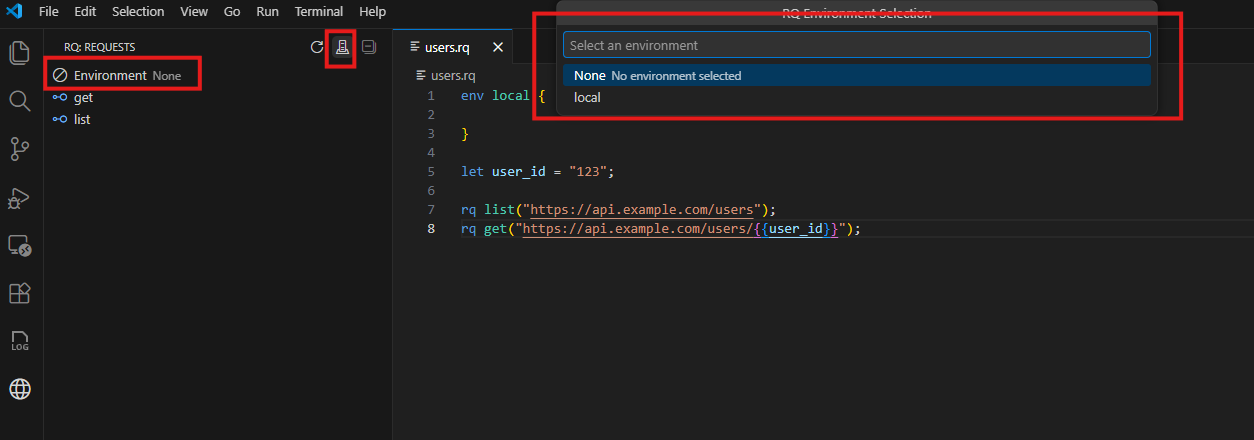
- Use the environment selector at the top of the view to switch between environments (for example
local,dev,prod). - The selected environment applies to all requests executed from the explorer and is resolved using the same rules described in Environments.
- If a variable is only defined within a specific environment block, the language server will report it as an error until that environment is selected. This is expected — switch to the right environment and the error will clear.
- Use the environment selector at the top of the view to switch between environments (for example
Environment color
An environment marked with [ui.color(...)] (see Marking an environment with a color) is painted with that color, both its name and its icon, in the Environment row of the Request Explorer while it is selected, so an environment such as production is hard to miss:
[ui.color(red)]
env production {
  api_url: "https://api.com",
}
Each palette color follows the active theme. To change the exact shade, override rq.environment.red, rq.environment.orange, rq.environment.yellow, rq.environment.green, rq.environment.blue or rq.environment.purple in workbench.colorCustomizations.
-
Executing requests
- Run: Click the “Run” icon next to a request to execute it immediately with the currently selected environment.
- Run with variables: Click the “Run with Variables” icon to provide runtime overrides for variables.
- The extension prompts for variables in
variable=valueformat (for exampleuser_id=123). - You can provide multiple pairs one after another; leave the prompt empty to stop and execute.
- All provided variables are passed to the engine as execution-time variables with the highest precedence.
- The extension prompts for variables in
Required variables
If a request declares one or more [required(var_name)] attributes (see Language Definition — required attribute), the extension checks for missing required variables before execution. For each missing variable, an input prompt appears so you can supply the value inline — no need to use “Run with Variables” separately. If you cancel any prompt, the execution is aborted.
-
Navigation & browsing
- The tree groups requests by folder and endpoint structure (for example, endpoint-based requests appear under their
epname). - Clicking a request opens the corresponding
.rqfile and jumps directly to the definition of that request.
- The tree groups requests by folder and endpoint structure (for example, endpoint-based requests appear under their
-
Configuration view
A separate Configuration view (also in the Activity Bar) lists all environments and auth providers defined across your workspace, so you can inspect them without opening the file manually.
Response panel
After a request runs, the extension opens a response panel showing the status code, response headers, and formatted body.
- Use the Copy button in the panel to copy the response body to the clipboard.
- For execution errors (network failures, interpolation issues, auth problems), check the RQ output channel via View → Output → RQ for the full details.
The rq.results.tabMode setting chooses which tab a result opens in:
| Value | Behavior |
|---|---|
single (default) | Every request reuses one results tab. |
perRequest | Each request gets its own tab, named RQ: <request>; running it again reuses that tab. Requests with the same name in different files get separate tabs. |
perExecution | Every run from the explorer opens a new tab, named RQ: <request> (<time>), so earlier results stay open. |
In every mode, Run again and Copy act on the request and body shown in the tab they are clicked in, and Run again refreshes that same tab. Run again keeps the variables entered for that request but uses the environment selected in the explorer now, not the one of the original run. A change to the setting applies from the next run.
IntelliSense & language features
The extension ships a built-in language server that analyzes your .rq files as you edit them. This means you get meaningful feedback and editor assistance without having to run a single request.
Autocomplete
Context-aware suggestions are available throughout:
- Keywords and snippets: Templates for
rq,ep,env,auth, and common constructs to get you started quickly. - System functions: Suggestions for built-in functions such as
io.read_file,io.read_json,random.guid, anddatetime.now. - Defined objects: The editor suggests variables, request names, environment names, and auth providers that are already declared in the file or imported files.
- Object parameters: Named parameters for
rq(e.g.url,headers,body) andep(e.g.url,headers,qs) are suggested in context, so you never have to guess valid field names. - Auth properties: When defining an
authblock, the available fields are filtered by the selectedauth_type— you only see what is relevant. - Attributes: Valid request attributes (e.g.
[method(...)],[timeout(...)],[auth("...")]) are suggested when writing attribute lines. - Imports: Typing
importtriggers suggestions for other.rqfiles found in the workspace.
Hover tooltips
Hovering over an rq, ep, env, or auth statement shows a summary of its definition inline, without having to navigate to it.
Navigation
- Go to definition: Jump to the declaration of any request, variable, environment, or auth provider across the workspace (
F12or right-click → Go to Definition). - Find all references: See every place a symbol is used across the workspace (
Shift+F12or right-click → Find All References). - Rename symbol: Rename a request, variable, auth provider, or environment name consistently across the workspace (
F2or right-click → Rename Symbol).
Format document
The extension can format the current .rq file using the standard VS Code Format Document command (Shift+Alt+F on Windows/Linux, Shift+Option+F on macOS). This normalizes indentation and spacing to keep files consistent.
Syntax highlighting and errors
The extension ships with a TextMate grammar for rq, providing:
- Highlighting for keywords, identifiers, HTTP methods, attributes, strings, interpolations, and comments.
- Clear coloring for block constructs (
env,ep,auth,rq).
Parse and semantic errors
Errors are surfaced in two places depending on their nature:
- Problems panel: Parse and semantic errors (missing braces, invalid attributes, unknown auth fields, duplicate identifiers, missing variables, etc.) are reported with file, line, and column as you type. These are detected by the language server in real time — no need to trigger a request to see them.
- Output panel: Errors that occur at execution time (for example, a failed HTTP request, a runtime interpolation error, or an auth flow problem) are written to the RQ output channel. Open it via View → Output and select RQ from the dropdown to see execution logs and error details.
Idiom linting
Beyond parse and semantic errors, the extension runs rq’s idiom and style rules over the .rq files you have open and reports them in the Problems panel as warnings, so they never get confused with real syntax errors.
Each finding carries the rule that produced it (empty_url_string, duplicated_ep_config, manual_auth_header, … — see Lint Rules for the full list) and, where the fix is mechanical, a suggested rewrite appended to the message. Filter them in the Problems panel by the rq lint source.
Rules are workspace-aware: an endpoint that duplicates a query string or an auth provider already declared by a sibling .rq file is flagged even when that sibling is not open. Unsaved edits are linted as you type — the linter sees the buffer, not the file on disk.
To keep a single finding, put // rq-lint-ignore <rule> on the line above the statement or at the end of the offending line, or // rq-lint-ignore-file <rule> anywhere in the file; an optional reason follows a :. See Suppressing lint findings.
The finding’s Quick Fix… (also the light bulb, or Cmd+. / Ctrl+.) writes the comment for you: Suppress <rule> on this line, for this statement or for this file, adding the rule to an existing rq-lint-ignore comment when there is one. hardcoded_secret is never offered for a whole file. An unused_lint_suppression finding offers Remove unused suppression instead.
Set rq.lint.enabled to false to turn the warnings off; parse and semantic errors are unaffected.
AI assistance (MCP server)
The extension bundles rq-mcp, an MCP server that lets Copilot Chat — and any other MCP-aware chat in VS Code — author .rq files against rq’s own parser, analyzer and linter. It is registered automatically on activation, with nothing to install or configure. The same server is published to npm as @rqlang/mcp for assistants outside VS Code.
- AI-Assisted Authoring — a ten-minute tutorial, ending with a request suite generated from an OpenAPI spec
- MCP Server — the tools it exposes, the style rules it enforces, and how it is launched
Debug logging
Enable rq.debugLogging in VS Code settings (Code → Settings → Settings, search for rq debug) to write detailed request and authentication traces to the RQ output channel.
With debug logging on, the output channel shows the full token exchange (request and response bodies for token endpoints), the headers sent with each request, and step-by-step auth flow events. This is the fastest way to diagnose auth misconfigurations, unexpected token errors, and scope issues.
The same setting also turns on the rq library trace, shown with an [rq] prefix: the files parsed for each operation, the environments and secret sources used (secrets by name only), where each variable comes from, and OAuth2 token requests. It is the same trace the CLI prints with -d, and it changes as soon as the setting is toggled, without reloading the window.
To view the output: View → Output, then select RQ from the dropdown.
Disable rq.debugLogging when not actively debugging — it logs full token and header values.
Interactive OAuth authentication
The extension deeply integrates with rq’s auth providers to support interactive OAuth-based flows.
When you run a request that uses an OAuth2-based auth provider (for example oauth2_authorization_code or oauth2_implicit):
- The extension detects that the flow requires user interaction.
- It guides you through the login/consent process and captures the resulting token.
- The token is then passed to the rq engine so the request can be executed.
- The access token is cached using VS Code’s standard secrets API so it can be safely reused in later flows.
Supported flows:
- OAuth2 Implicit
- OAuth2 Authorization Code with PKCE
Redirect handling:
The extension automatically selects the best handling strategy based on the redirect_uri configured in your auth fields:
-
VS Code URI Handler (
vscode://...)This is the preferred and default option. If you do not specify a
redirect_uri, the extension automatically usesvscode://rq-lang.rq-language/oauth-callback.-
Why it is preferred: This URI instructs the identity provider to redirect control directly back to the RQ extension. It provides the most seamless experience (no manual copy-pasting) and works reliable across local setups, WSL, SSH remotes, and Codespaces without needing to open local ports.
-
Process:
- Extension opens your browser for login.
- After login, the browser asks to “Open Visual Studio Code”.
- VS Code catches the callback automatically.
- The token is retrieved without manual copy-pasting.
-
-
Localhost Server (
http://localhost:...)Use this if your matching provider supports
localhostredirects but not custom protocols.- Example:
http://localhost:3000/callback - Process:
- Extension temporarily starts a local HTTP server on the specified port.
- Extension opens your browser for login.
- After login, the browser redirects to your localhost port.
- The local server captures the code/token and shows a success page.
- The extension stops the server and proceeds.
- Example:
-
Manual / Custom URLs
Use this as a fallback for any other URL (e.g., production callbacks).
- Example:
https://my-api.com/auth/callback - Process:
- Extension opens your browser for login.
- You complete the login flow until you land on the final redirect page.
- VS Code shows an input box asking for the full URL.
- You copy the URL from your browser’s address bar and paste it into VS Code.
- The extension parses the code/token from the pasted URL.
- Example:
These flows are designed to work hand in hand with the language-level auth configuration described in Auth.
Additionally, you can:
- Use the command
RQ: Get Tokento trigger token acquisition explicitly, without sending a request. When invoking this command, you will be prompted for an environment (optional) and an auth provider name as input parameters. Both the environment and the auth provider must be defined in the.rqfiles under the current workspace folder. - Use the command
RQ: Clear OAuth Cacheto clear cached tokens and force a new login.
Tokens obtained through these flows are cached using VS Code’s native authentication API, so they can be reused across requests until you clear them or they expire.